
Appearance
Sites and team access
Each site has its own devices, device groups, media, and team members. A person can belong to several sites with a different role in each one.
Open or create a site
Open the user menu in the top right and choose My sites, then select a site. If you belong to several sites, you can also use Switch site in the user menu.
To create a site, choose Add site on the sites page, enter its name, review its timezone, and select Create. The person who creates the site becomes its owner. This action requires an active account with permission to create sites.
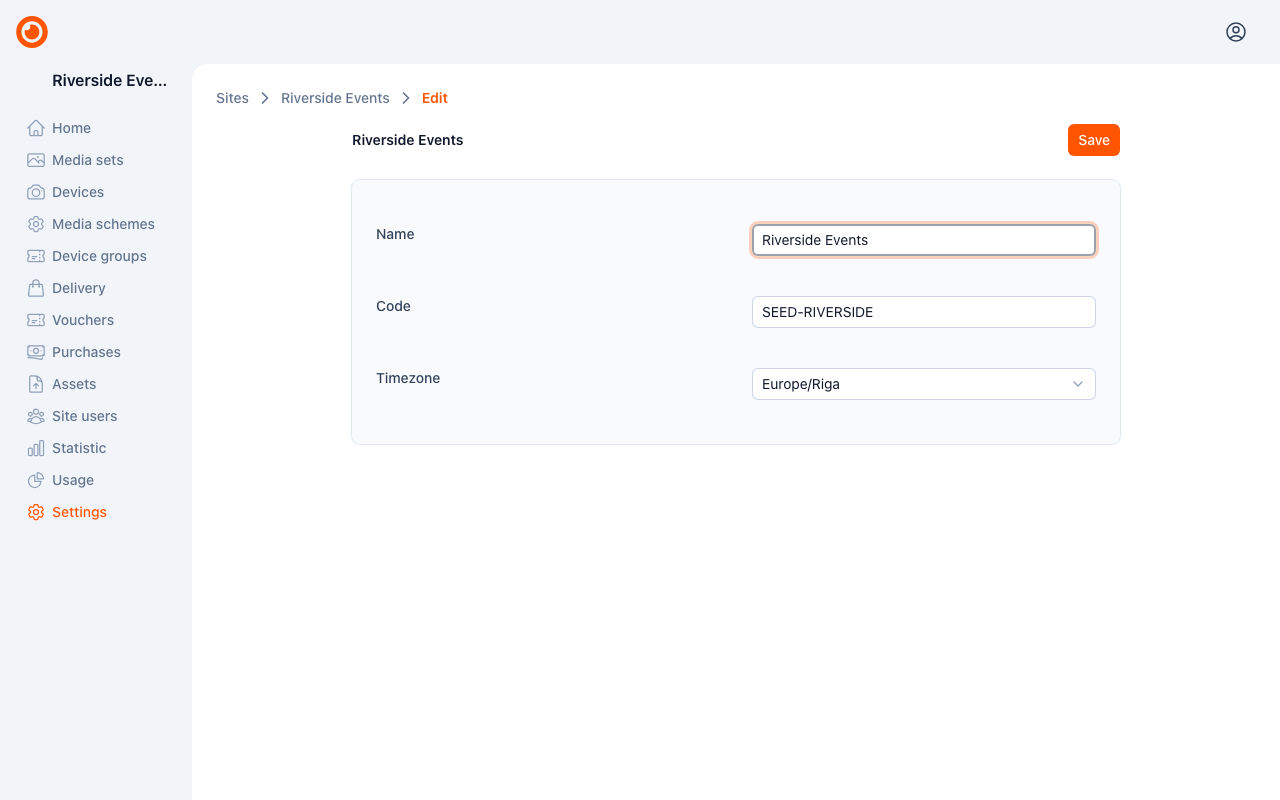
Site owners can open Settings in the site's sidebar to update its details. Review the name and timezone when setting up a starter site.
Understand roles
| Role | Typical responsibilities |
|---|---|
| Owner | Manage site settings and membership, as well as devices, processing, and media. |
| Admin | Manage devices, device groups, processing, and media. Site settings and membership are managed by the owner. |
| Operator | View devices and media, work with media sets, and use available device commands and adjustments. Configuration and team management are handled by an owner or admin. |
Your role applies to one site. Being an owner in one site does not grant access to another. Owners also manage the site's plan and subscription, described in Plans and billing.
Invite a colleague
Site owners can invite people from Site users:
- Select Invite member.
- Enter the colleague's email address.
- Choose the role they need for this site.
- Send the invitation.
An invitation becomes a membership only after the recipient accepts it. Invitations are listed in their own Invitations table. A pending invitation can be resent or revoked from its actions menu.
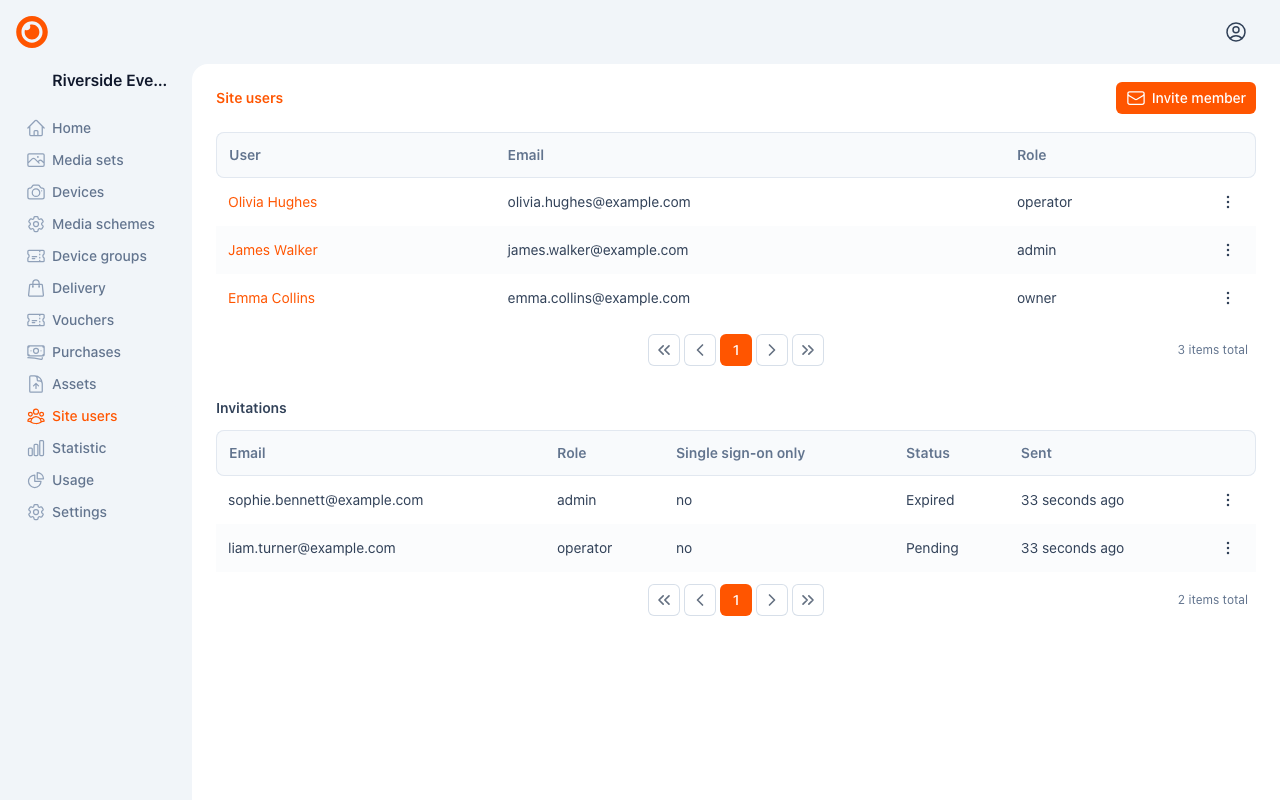
Use Single sign-on only when the person should sign in through their organization account. These accounts use a sign-in provider rather than a password.
Accept an invitation
Open the invitation email and follow its link. If you already have an account, sign in with the invited email address and accept the invitation in Falcon. You can also find pending invitations on My sites.
If you are new to Falcon, the invitation guides you through creating an account and joining the site. If you have several invitations, accepting one does not accept the others.
Organize device groups
Device groups help organize devices within a site, for example by attraction or capture location. You also use them to filter media sets.
Owners and admins can open Device groups and choose Add device group. Give the group a recognizable name and, if useful, a code. Select the appropriate group when registering a device.