
Appearance
Media sets
A media set groups the files and information for a capture. It can contain original photos or videos and files created during processing.
Find captured media
- Open the site you want to work with.
- Select Media sets in the sidebar.
- Use the device group filter to narrow the list when needed.
- Open a media set to inspect its details and files.
You can also open recent media sets from a device's page.
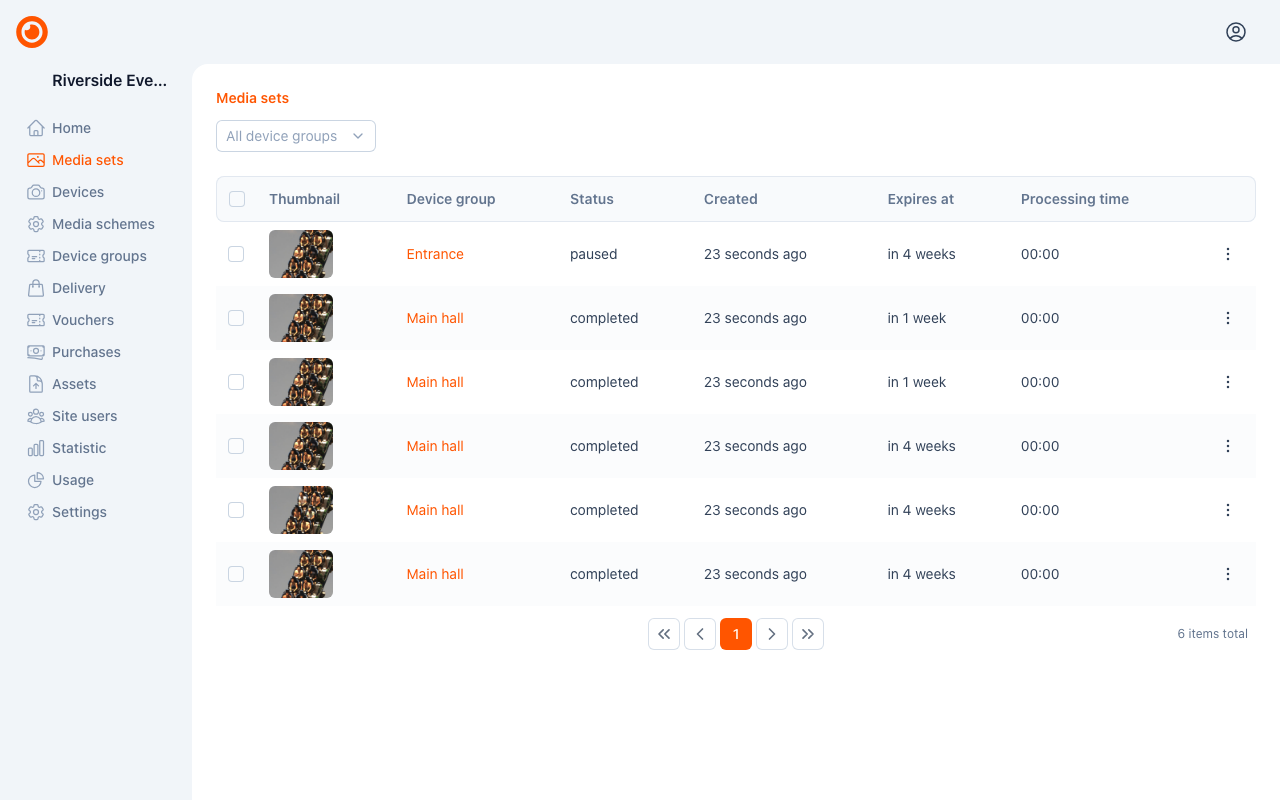
Follow processing progress
The status describes where a media set is in processing:
| Status | Meaning |
|---|---|
new | Processing has not been queued yet. |
pending | Processing is queued and waiting to start. |
processing | Processing has started and is not yet complete. |
completed | Processing has finished. |
paused | Processing has stopped before completion, or waits for a visitor to unlock the media set. |
quota | Processing is paused until processing credits are available. The capture is kept. |
failed | Processing stopped because of an error. |
A media set in quota is processed automatically once credits are available: when the period resets, when a site owner buys balance, or when auto-reload tops the balance up. To see how much is left, ask a site owner or admin to review Usage. See When an allowance runs out.
If processing fails or appears stuck, give them the media set's ID and the device that produced it so they can investigate.
Preview and download files
Open a media set to see its files grouped by category. Supported photos and videos can be previewed from the file tiles. Use the download icon beside a file name when a download is available.
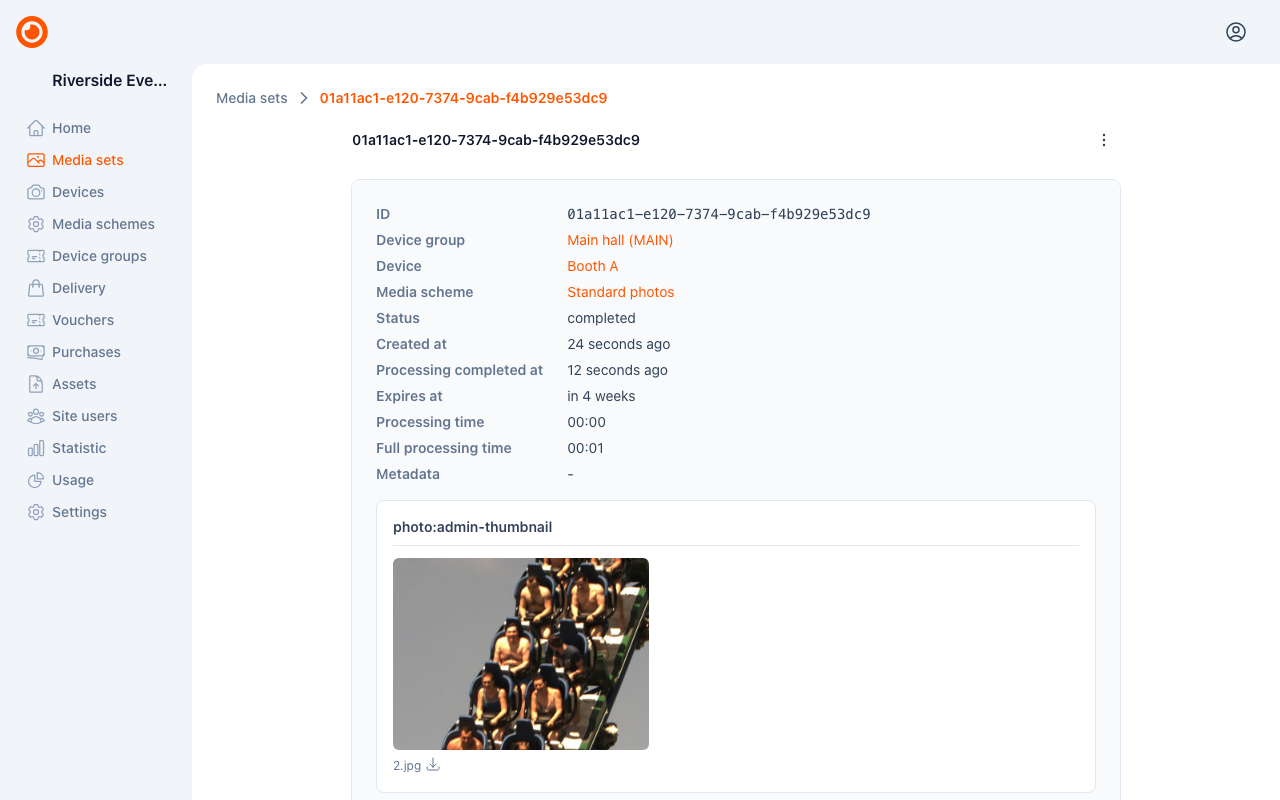
The file list can change while capture uploads or processing are still in progress. If no files are shown yet, check the status and revisit the media set after processing completes.
Check expiry
Review Expires at to see when the media set expires. Download files you need to keep before that time. Retention depends on the site's setup.
Delete media
Owners and admins can delete media sets. Use a media set's actions menu, or select multiple entries in the list and choose Delete selected. Review the confirmation carefully: deletion cannot be undone through the app.