
Appearance
Devices
The Devices section shows the capture devices in your current site. You can filter the list by device group and open a device to see more detail.
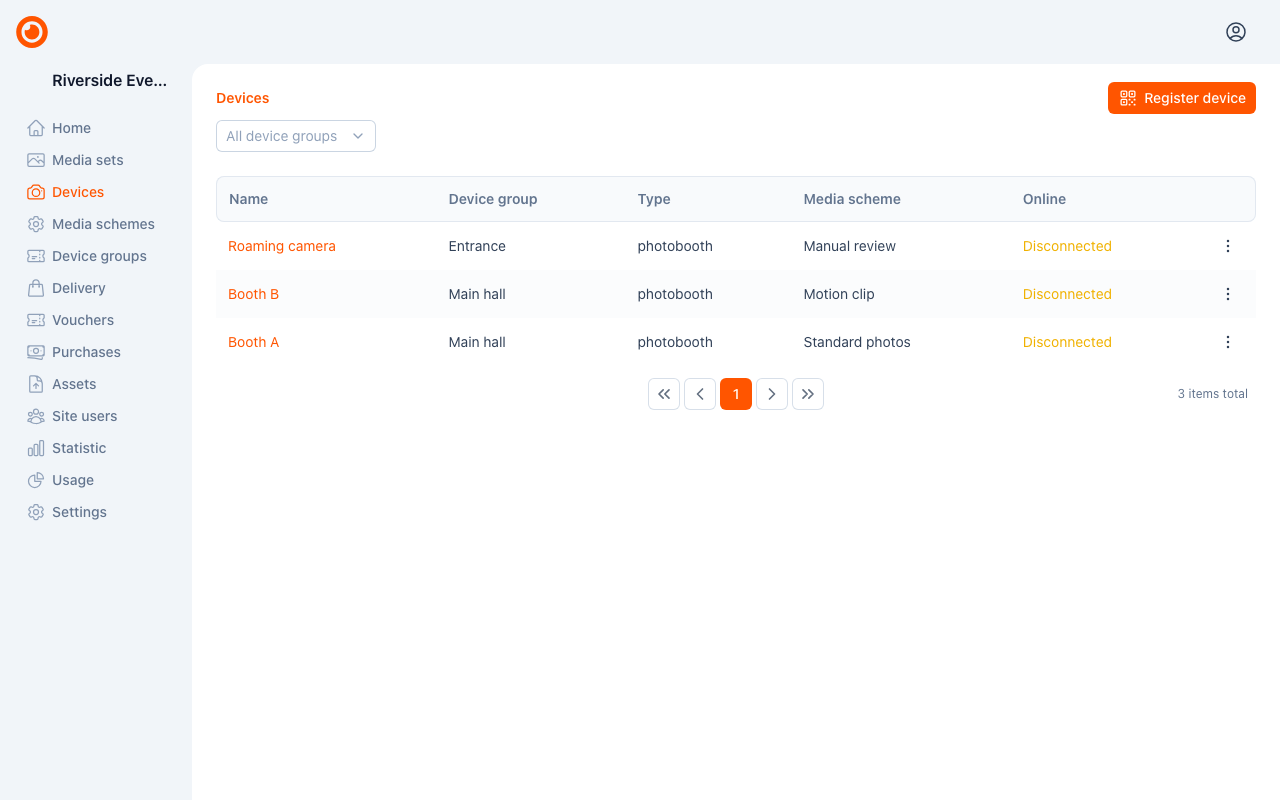
Register a device
Owners and admins can create a registration for a device:
- Open Devices in the correct site.
- Select Register device.
- Choose the device group the device should belong to, if it is not already selected. The QR code appears.
- Scan the displayed QR code using the capture device's registration flow, or select Download JSON and use the file with the device's setup process.
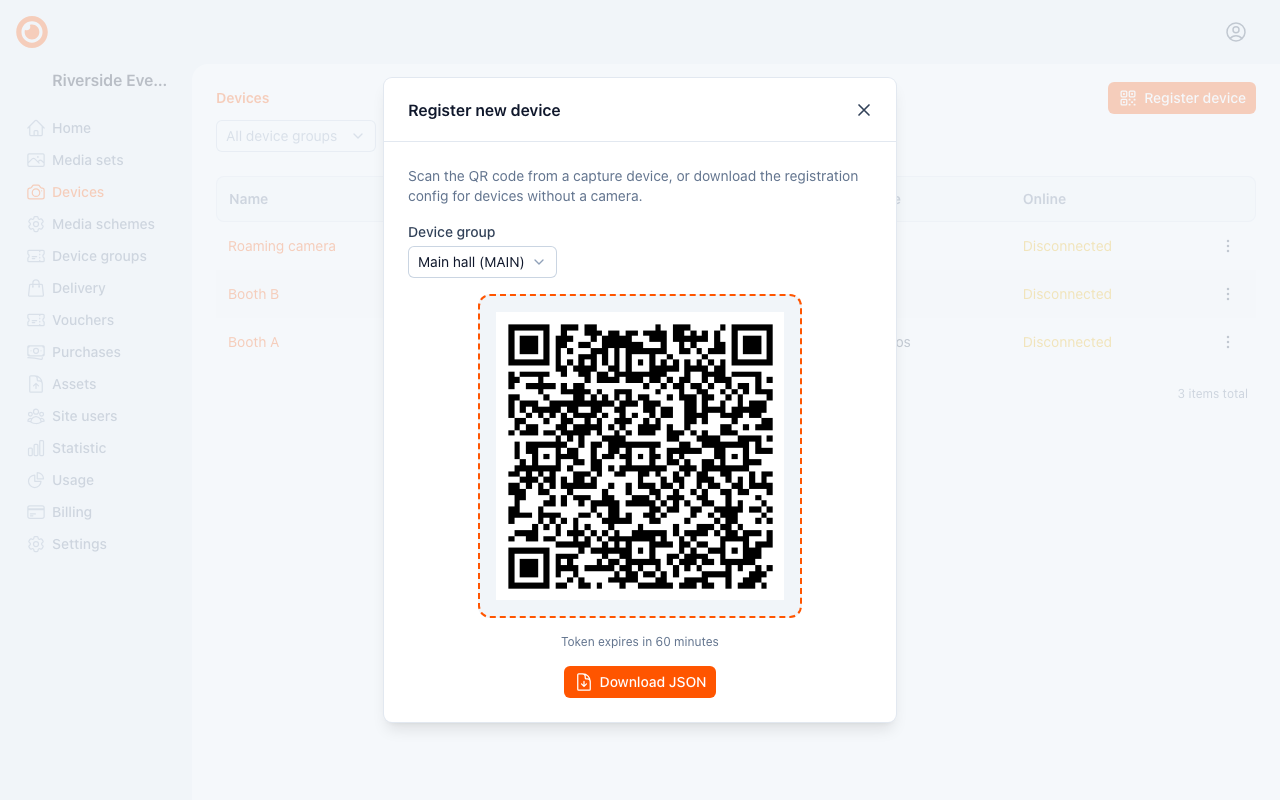
The QR code and JSON file contain the same registration credentials. The registration is single-use; create a separate one for each device. Check the expiry shown in the dialog and create a new registration if it expires before you finish.
The final setup steps depend on the device. If the dialog is still open when registration succeeds, the new device's page opens.
A capture device takes a free seat when it is registered and captures nothing without one; see Seats and devices.
Check the connection
Use Online and Last seen in the device list to check whether Falcon can currently communicate with a device. Open the device to see the controls and status information it supports.
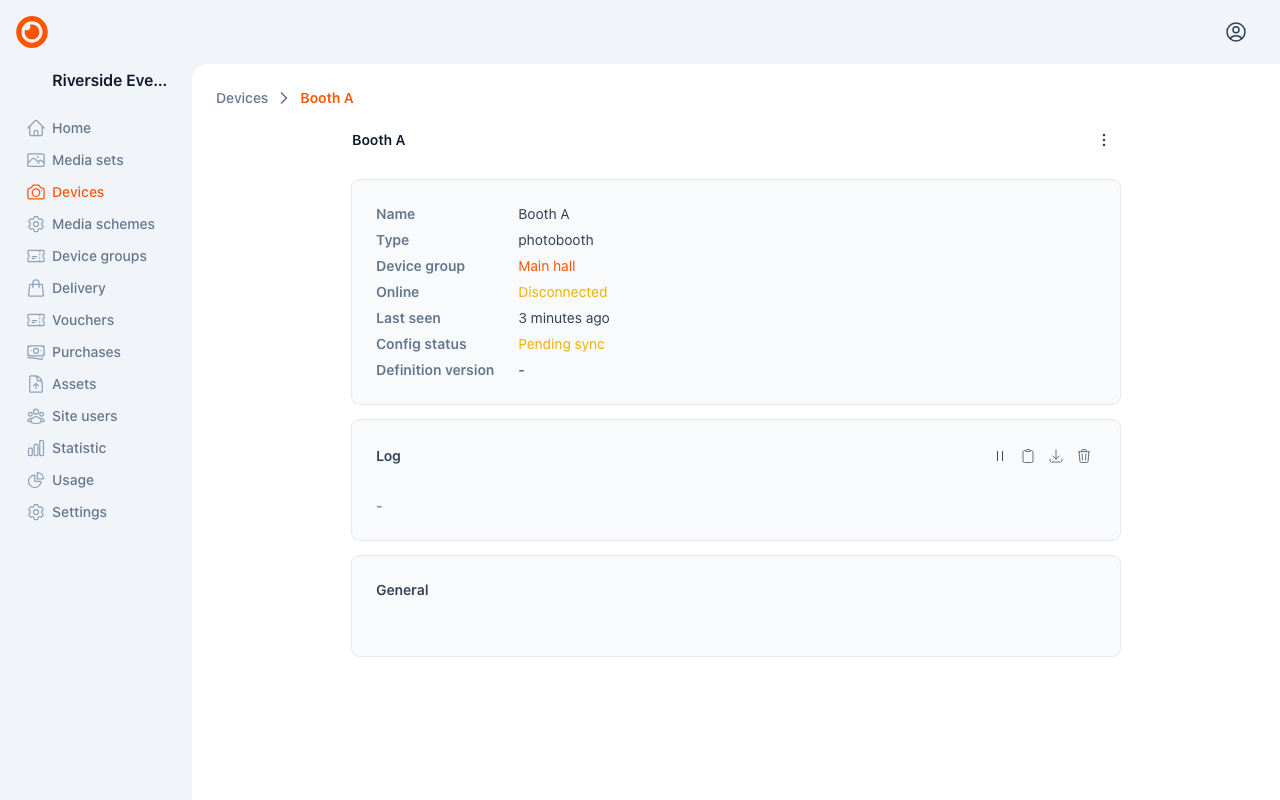
If a device is disconnected, check its power and network connection first. A device that is listed in Falcon has been registered, but it still needs a working connection for live controls.
Review configuration
Owners and admins can edit a device's details and configuration. The fields shown depend on the device type and its supported features.
After saving a configuration change, check Config status:
- Pending sync means the device has not yet acknowledged the current configuration.
- Synced means the device has acknowledged it.
If a change remains pending, check that the device is connected.
A media scheme defines how captured media is processed. Assign the appropriate scheme when your setup requires processing; the scheme must belong to the device's site.
Use live controls
Depending on the device's capabilities, its page can show live snapshots, adjustments, commands, status values, and logs. Available controls vary between devices.
The device page also lists recent media sets. Open a result there, or use Media sets in the sidebar to browse the site's captures.
Continue with Media sets.