
Appearance
Getting started
Falcon brings your capture devices, media processing, and captured photos and videos into one place. Start by signing in and choosing the site you want to work with.
You can return to this guide using User Guide on the sign-in page or in the user menu in the top right. Use Open Falcon at the top of the guide to return to the app.
Sign in
Open Falcon at the address provided by your team. Enter your email and password, or choose one of the sign-in providers shown on the page.
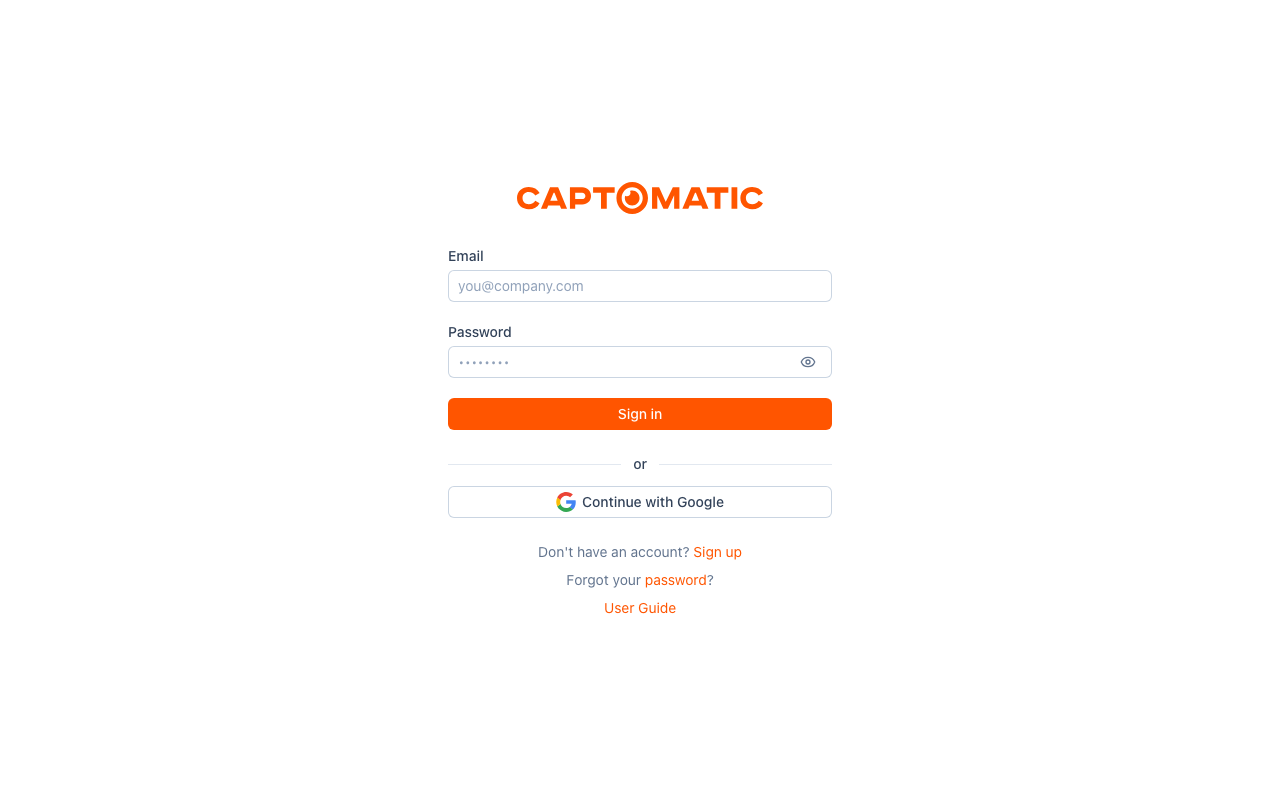
If you received a site invitation, open the link in that email to join the team. Use the email address the invitation was sent to.
If Sign up is available, you can create your own account. When signing up with a password, follow the confirmation link sent to your email address to activate the account. Some deployments provide a starter site and device group after activation.
Choose a site
A site is a workspace containing devices, media, and the people who can access them.
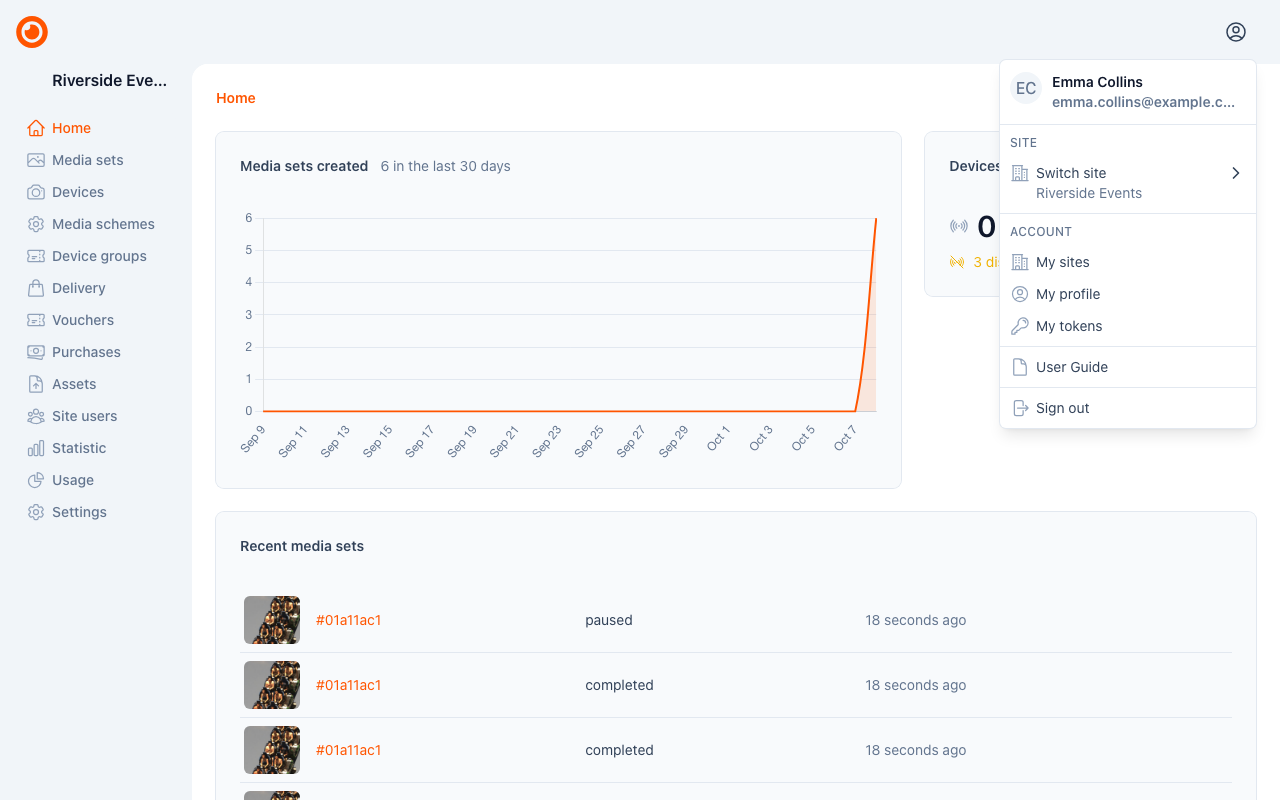
- To see your sites, open the user menu in the top right and choose My sites.
- If you belong to more than one site, use Switch site in the user menu.
- Check the site name in the sidebar before changing settings or registering devices.
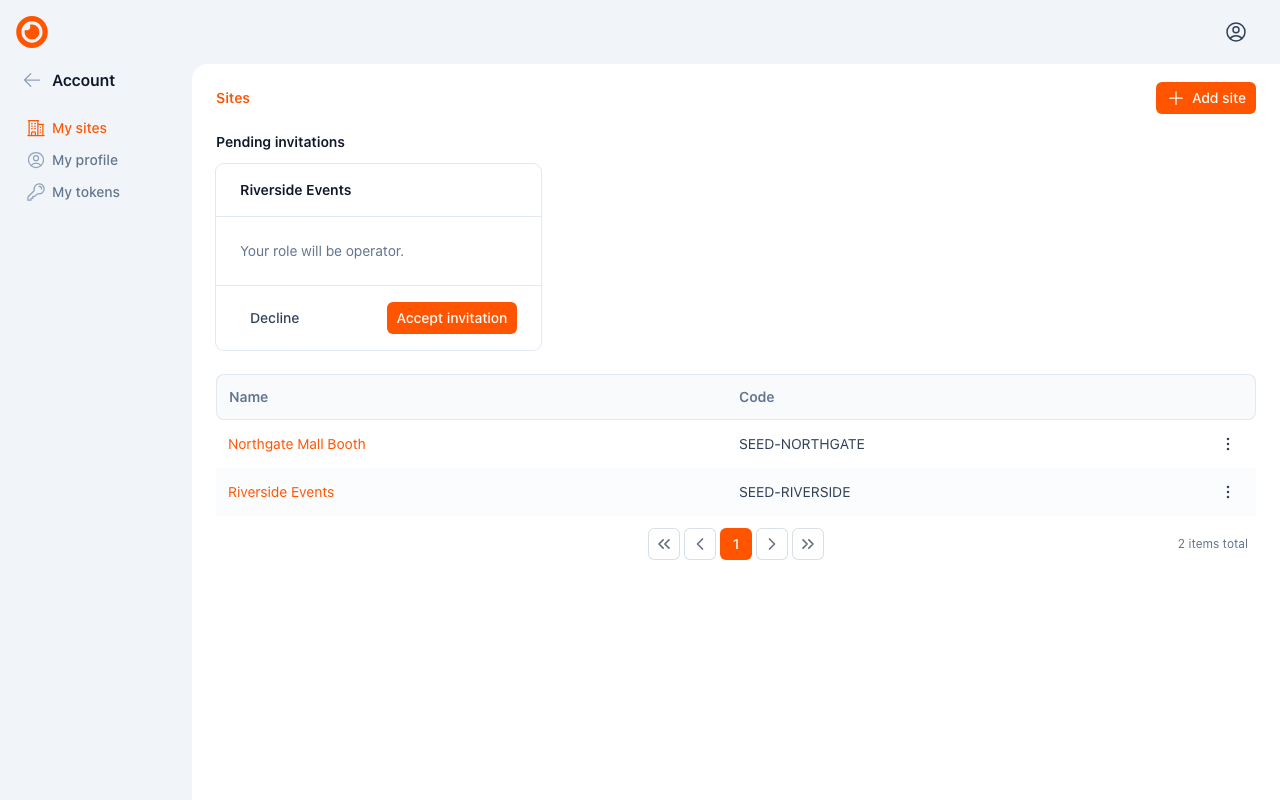
If you have no site yet, accept a pending invitation or use Add site on the sites page when that action is available. Ask your site owner if you expected to have access to an existing site.
Understand the main sections
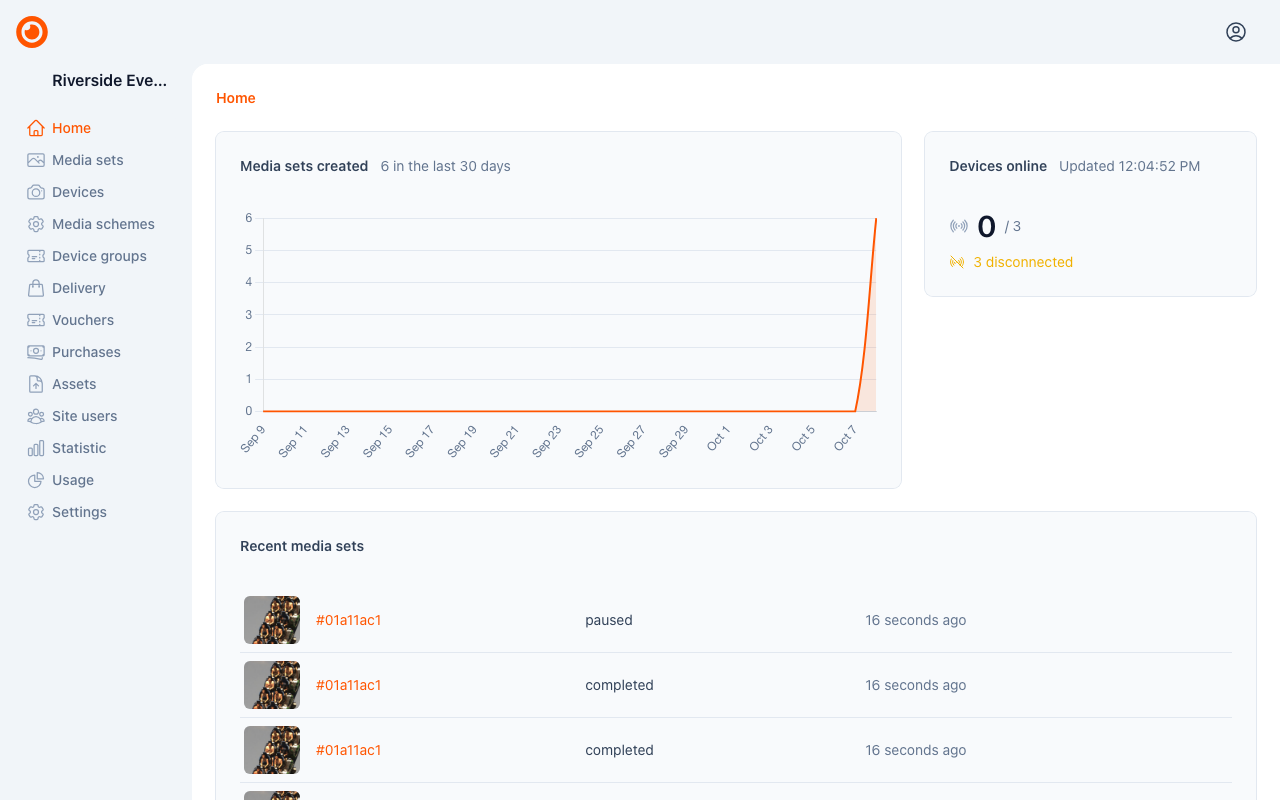
| Section | What you use it for |
|---|---|
| Home | See an overview of the current site's activity and devices. |
| Media sets | Browse captured media and download available files. |
| Devices | Register devices, check connections, and manage configuration. |
| Media schemes | Configure the processing steps applied to captured media. |
| Device groups | Organize devices and the media they capture. |
| Site users | Owners invite people and manage access. |
| Usage | Owners and admins review the site's plan allowances and current usage. |
| Billing | Owners manage the site's subscription, prepaid balance, payment method and invoices. |
| Settings | Owners update the site's details. |
The sections and actions you see depend on your role in the current site. Your access can differ between sites.
Make your first capture
- Check that you are in the right site and have a device group ready.
- Register your capture device.
- Open the device and check its connection and configuration.
- Capture using the controls supported by your device.
- Open Media sets to find the result and check its processing status.
Continue with Sites and team access, Media sets or Plans and billing.
Recover access
For a password account, use the password reset link on the sign-in page. Follow the email instructions, then sign in with your new password.
If your account uses your organization's sign-in provider, use that provider to sign in. Contact your organization if you cannot access the provider account.